
How to Get Libby on Kindle and Read Free Library Books
Here is the short answer, because the usual confusion ends in one sentence: you do not install Libby on your Kindle. Libby lives on your phone or tablet. You borrow a free library ebook there, tap “Read With” and choose Kindle, sign in to Amazon, and the book is delivered to your Kindle. It is free, and it works with any US library card.
That trips up almost everyone at first. People buy a new Kindle, search the Amazon store for the Libby app, and come up empty. There is nothing to download onto the Kindle itself. Once you understand that, the whole process takes about two minutes.
Below is the full walkthrough, the device differences, and the fixes for when a book stubbornly refuses to appear. Let’s get your library books onto your Kindle.
Can You Use Libby on a Kindle?
Yes, in the United States. You can read most borrowed Libby ebooks on a Kindle e-reader, as long as your library is in the US (Libby Help). You borrow the book in the Libby app and send it to your Kindle through your Amazon account. The reading happens on the Kindle; the borrowing happens in Libby.
Two limits to know upfront. The Kindle option is for ebooks only, not audiobooks, and it is available for US libraries only. More on both of those below.
Do You Install the Libby App on a Kindle?
No. The Libby app is not available in the Amazon Appstore, so you cannot download it onto a Kindle e-reader like a Paperwhite, Oasis, Scribe, or Colorsoft. This is the single most common mix-up new Kindle owners run into.
Instead, Libby goes on a separate device you already own: an iPhone, Android phone, iPad, or tablet. You can also use it in a web browser at libbyapp.com. From there, borrowed ebooks are sent to your Kindle, so the Kindle never needs the app.
There is one exception. A Kindle Fire is a tablet, not an e-reader, so it can run apps. More on that in the device section.
What You Need Before You Start
A quick checklist. Have these ready and the rest takes minutes:
That last point matters more than people expect, and we cover how to check it further down.
How to Get Libby Books on Your Kindle (Step by Step)
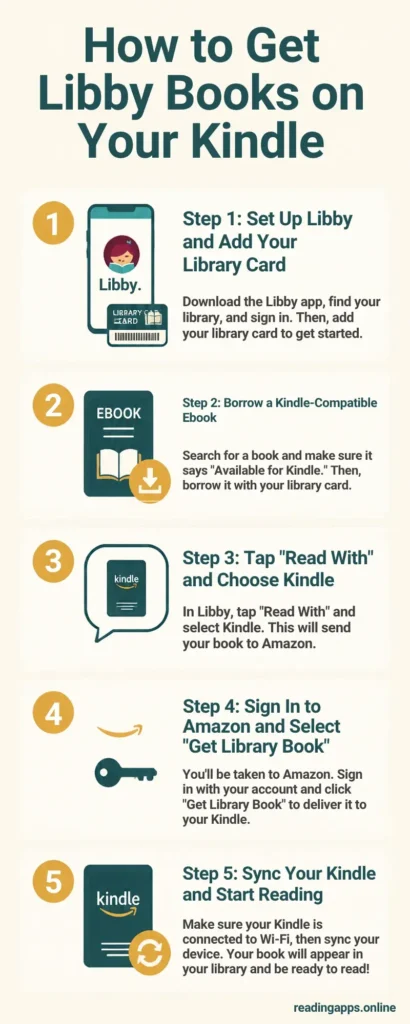
Here is the full process from start to finish. Do the first part once, and after that it is just borrow, send, read.
Step 1: Set Up Libby and Add Your Library Card
Download Libby on your phone or tablet and open it. Follow the prompts to find your local library, then sign in with your library card number and PIN. This links your card to Libby and unlocks your library’s digital collection.
You can add more than one library card in Libby, which is a great trick for shorter wait times. We will come back to that.
Step 2: Borrow a Kindle-Compatible Ebook
Search for a title or browse your library’s collection, then tap “Borrow” and confirm. Your library sets the loan length, often 14 or 21 days.
One thing to watch: square covers are audiobooks and rectangular covers are ebooks. Only ebooks can go to a Kindle. If you want to be sure a title works, filter your search by “Kindle Book” format before borrowing.
Step 3: Tap “Read With” and Choose Kindle
Go to your “Shelf,” open “Loans,” and find the book you just borrowed. Tap “Read With” and you will see two options: Libby or Kindle. Choose Kindle.
If you read on a phone or tablet, Libby is the simpler choice. But to read on your Kindle, you must pick Kindle here. This is the step most people miss.
Step 4: Sign In to Amazon and Select “Get Library Book”
Choosing Kindle opens Amazon’s website. Sign in to the Amazon account your Kindle is registered to, and check the “keep me signed in” box so you only do this once.
Amazon shows the book with a yellow “Get Library Book” button. Before you tap it, check the delivery device. If you own more than one Kindle, pick the right one from the dropdown, then select “Get Library Book.”
Step 5: Sync Your Kindle and Start Reading
The book lands on your Kindle the next time it syncs. If your Kindle is on Wi-Fi at home, it usually appears within a moment on your home screen.
If it does not show up right away, force a sync. Open the menu on your Kindle and tap the sync icon, the two arrows forming a circle. The borrowed book should appear at the top of your library.
How to Get Libby on a Kindle Paperwhite, Oasis, or Scribe
The steps are identical across Kindle e-readers. Whether you have a Paperwhite, Oasis, Scribe, or Colorsoft, you still borrow in Libby on your phone, send through Amazon, and sync. There is no separate setup for different e-reader models.
Kindle Fire Tablets Work Differently
A Kindle Fire is a tablet, so it can install the Libby app directly, and you read inside the app like you would on any phone. If you already use Libby elsewhere, a setup code copies your cards, loans, and holds over to the Fire.
Adding a Libby Book to a Kids’ Kindle
For a child’s Kindle, send the book to the parent Amazon account first using the steps above, then move it to the child’s profile through Amazon’s parent dashboard. The borrow still happens in Libby on your own device.
Are All Libby Books Available on Kindle?
No. Not every Libby title can be sent to a Kindle, because availability depends on the format the publisher and library offer. Some books are offered only as another ebook format, and licensing rules vary title by title.
The fix is simple. In Libby, use the format filter and select “Kindle Book” so you only see titles you can send to your Kindle. Check this before you borrow, and you will never hit a dead end.
Can You Send Libby Audiobooks to a Kindle?
No. Library audiobooks cannot be sent to a Kindle or read on a Kindle e-reader. This is an OverDrive limitation, not a setting you can change. Audiobooks play only inside the Libby app itself.
If you borrowed a title and only see a listening option, it is the audiobook edition. Look for the ebook version of the same book, which will have a rectangular cover. For audiobook listening, the Libby app is excellent, and you can see how it compares in our guide to the best audiobook apps.
Troubleshooting: Libby Book Not Showing Up on Kindle
If the book is not on your Kindle, work through these in order. Nine times out of ten it is a sync or a wrong-device issue.
- Connect your Kindle to Wi-Fi and force a sync from the menu.
- Confirm you sent it to the correct Kindle, if you own more than one.
- Make sure your Kindle is registered to the same Amazon account you used.
- Restart the Kindle if it still has not appeared.
There Is No “Read With Kindle” Option
If you do not see a Kindle choice under “Read With,” the title is almost certainly not offered as a Kindle Book, or your library is outside the US. Check the format filter, and try the ebook edition rather than the audiobook.
The Book Is Blank or Will Not Open
If a delivered book shows up blank, return to your library’s OverDrive site, select the problem title, and use “Report Kindle book problem.” Re-borrowing often clears it up too.
How to Return or Renew a Libby Book on Kindle
You do not have to return a book early, since it returns itself when the loan ends. But returning early frees it for the next reader and clears your shelf.
For a Kindle book, you can return early in two ways: in the Libby app under “Manage Loan,” or through Amazon under “Manage Content and Devices.” To renew, open the book in Libby and renew it there, usually a few days before it expires, if no one else is waiting.
Does Libby Work on Kindle Outside the US?
No, not for sending books to a Kindle. The send-to-Kindle feature is for US libraries only, which Libby states plainly in its Kindle help. Readers in the UK, Canada, Australia, and elsewhere can still use Libby on a phone or tablet, just not on a Kindle e-reader.
If you are outside the US and want a library-friendly e-reader, a Kobo has OverDrive built in.
Pro Tips to Get More From Libby and Kindle
A few habits that make Libby far more useful once you are set up:
Frequently Asked Questions
This guide is based on hands-on use and the official Libby and OverDrive help documentation. Features and availability can change, so check Libby Help for the latest steps for your device.